Install General Software
Basic IT on campus (reminder)
Within the infosite of your study choice on our learning management platform ‘Leho’, you’ll find basic information about the wireless network, copying, printing, timetables, VPN connection etc.
Office 365 Suite
When receiving a Howest-account you automatically have a Microsoft Office 365-account as well as a Google-account.
To install the Microsoft Office 365 Suite (Word, Excel) through your subscription you can follow the next steps:
- Go to office.com and login with your Howest email and password
- Once logged in you can use the web-based version of the Microsoft Applications.
- If you want to install the desktop applications as well, follow these steps:
- Navigate to https://m365.cloud.microsoft/apps
- At the top right there is a button to install the
Microsoft 365desktop applications as well.
- Make sure Microsoft Teams is installed as we will use this tool a lot!
- Follow the installation wizard(s) as appropriate.
When Microsoft Teams is installed (or within the web based app), you should already be in the correct student Team. If not, join the correct Team as follows:
- Go to the ‘Teams’ section in the left side bar
- Click ‘Join or create team’ and use the code:
0fr0w80to join the Cyber Security student 26-27 Team!
Academic Software
Howest offers software via Academic Software. You can login with your Howest credentials and find useful software. This is optional and not necessary for the courses.
Browsers
A browser is a piece of software that allows the user to “browse” (= access) files and data on the Internet (or other networks). We suggest having multiple browsers available on your computer. Go ahead and follow the installation wizard.
Recommended (at least have these installed)
Virtualisation
You will often create (temporary) virtual machines with other operating systems or specific software installations. In order to prevent this from cluttering up your laptop/desktop a good virtualisation engine is necessary. You can use either:
You can keep all the default settings during install, but we recommend to disable the option to join the VMware Customer Experience Improvement Program.
IMPORTANT We do not support ARM architecture, or Chromebooks. So continue at your own peril. Details on supported architectures can be consulted on Howest hardware.
Editors
An editor is a piece of software that allows the user to interact with text files. Word from the Office suite is used to create documents with markup and/or images and is not considered an editor. The most common example of a very basic editor (on Windows) is notepad. In this degree, we will be making use of the Jetbrains stack, which will be handled in Course specific Software.
Jetbrains registration
Before downloading the software, however, you must ensure you are registered as a student to be eligible for free use of this software.
Go to https://www.jetbrains.com/shop/eform/v2/students and fill out all the fields of the form:
- Use your Howest-email!
- Level of study: undergraduate
- Graduation date (if prompted): choose september 2029
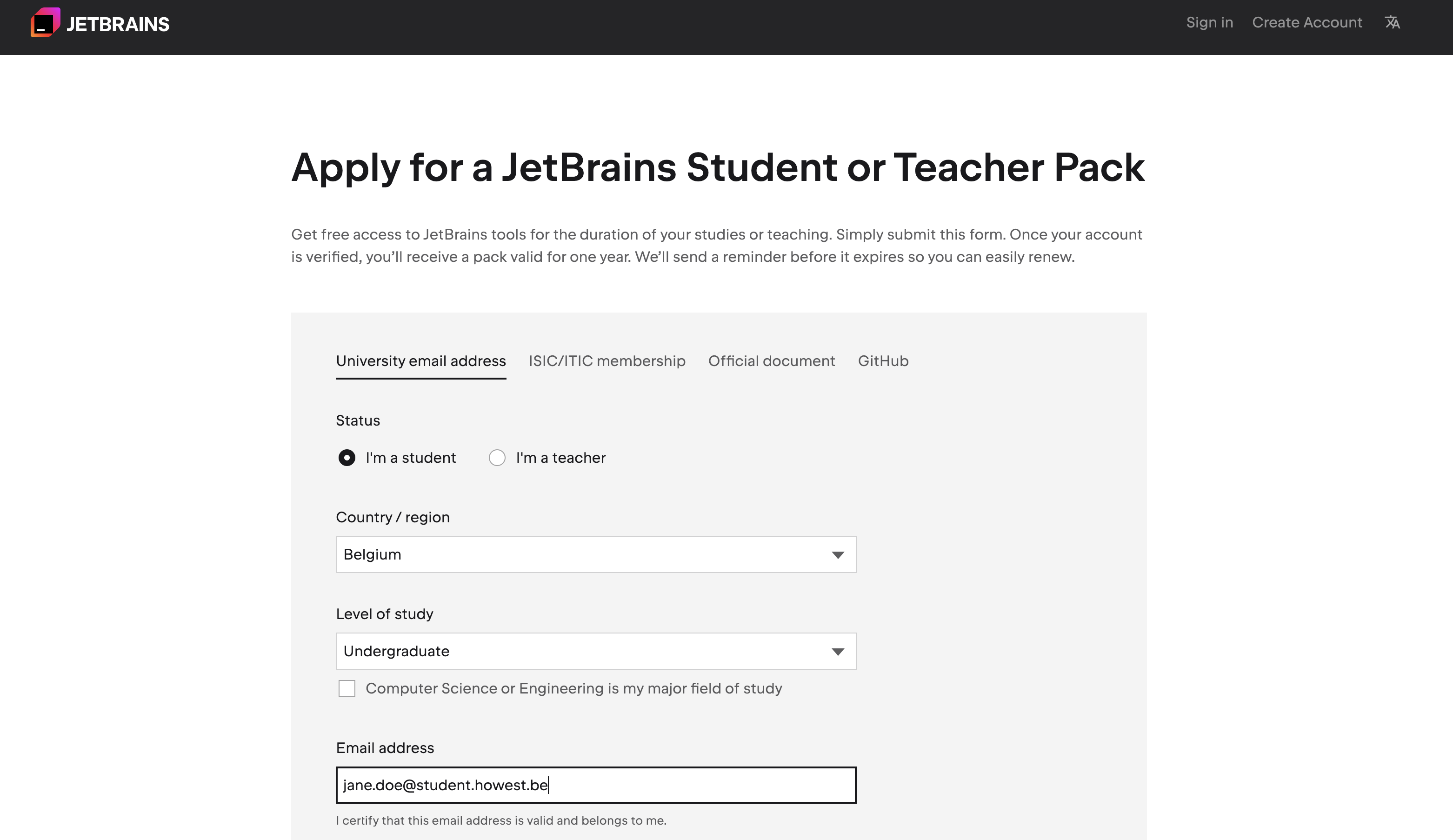
You should receive a confirmation mail. You will need your account in future steps. For now you can continue with Git.
Final step: Course specific software