SSH keys
These keys will make life easier. Don’t worry about the details. Just follow the steps of this walk-through! As for most walk-throughs concerning gitlab, it is easiest if you open a second tab or window and keep this page in another.
Login to GitLab
- Make sure you are logged in on https://gitlab.com/ if you aren’t already.
- Click on your avatar-icon and select Preferences. (The avatar can be found at the top of the page. On the left if you use the new (default) style. If you use the old style the avatar can be found on the right side)
- At the left choose Access > SSH keys
- Keep this SSH Keys window open and proceed to the next step of the walk-through.
Generate SSH Keys
- (You can skip this step if you already created an ssh key pair previously.
- Open
Git Bashif it isn’t already open. By pressing the windows button and searching forgit bash. A black window should open where you can type stuff. - In the black window type the following command where you replace your firstname and your lastname to your names:
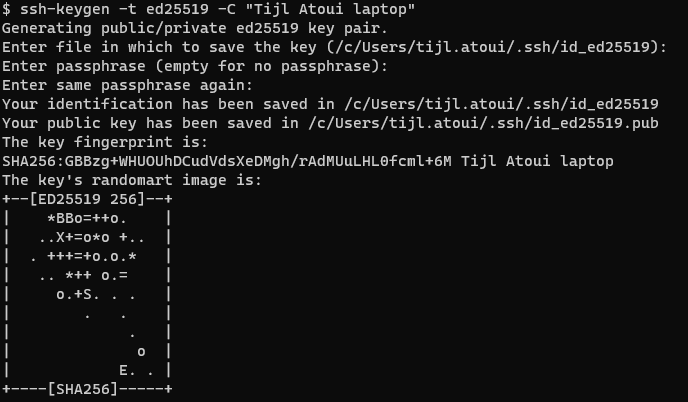
ssh-keygen -t ed25519 -C "firstname lastname laptop" - The command will state that it is generating a public/private ed25519 key pair and it will ask where it should store it. Just press enter (without entering anything)
- It will then ask for a passphrase. Once again just press enter (don’t enter anything)
- Enter once again on the question to type the same passphrase again.
- Some weird looking symbols should apear as shown in the image below.
Copy (public) Key to GitLab
- Still in the black window (git bash) type the following command
cat ~/.ssh/id_ed25519.pub - This should print some text starting with ssh-ed25519 and ending with your
firstname lastname laptop - Select this text with your mouse and copy it (right-click > copy)
- Go back to your browser (from the previous step) to GitLab and click
Add new key - Paste the copied key in the field key.
- Enter a title. For example firstname lastname laptop
- Empty Expires at (this means it won’t expire)
- Press Add key
Test if it works
To test you need to go back to the black window (git bash) and type the following command: ssh -T git@gitlab.com Answer yes to the question “Are you sure you want to continue connecting (yes/no)?”
Try to run the same command again: ssh -T git@gitlab.com. Now it should only say “Welcome to GitLab, @firstname.lastname!”
More information or troubleshooting
If there are teachers around, go ahead and ask! :)
Otherwise this might help: SSH Explanation and Troubleshooting